


Adjuvant Calculator
Adjuvant rate calculator that can help you calculate your adjuvant requirements

Start Using the Calculator
Quickly calculate mixing ratios!
AgraCity now has an easy-to-use adjuvant rate calculator that can help you calculate your adjuvant requirements quickly and easily. Navigate to the link below to start calculating.
CLICK TO START USING THE CALCULATORAdjuvant Calculator Install Guide
The AgraCity Adjuvant Calculator is an easy-to-use web app that assists with calculating your adjuvant requirements quickly and easily.
The app may be used online with a web browser or offline, as a downloadable progressive web app. You will find the most up to date version at agracity.inputcalculator.com/adjuvant calculator.
Install Guide—How to add the calculator to your phone, tablet, or computer
The AgraCity Adjuvant Calculator is a Progressive Web App (PWA). That means you can install it directly from your browser — no app store, no download — and once installed it works offline, in your truck or in the field, with or without cell service. This guide shows you how to install it in three browsers: Google Chrome, Microsoft Edge, and Safari.
Each browser has a slightly different install path. Pick whichever browser you already use.
BEFORE YOU START
Make sure you can open https://agracity.inputcalculator.com/adjuvant-calculatorin your browser first. If the page loads and shows the calculator, you are ready to install.
Installing in Google Chrome
Chrome offers two ways to install the calculator. Either path produces the same result: an AgraCity Calculator app on your computer that opens in its own window with no browser bar.
Option A — Use the install icon in the address bar
- Open Chrome and go to https://agracity.inputcalculator.com/adjuvant-calculator
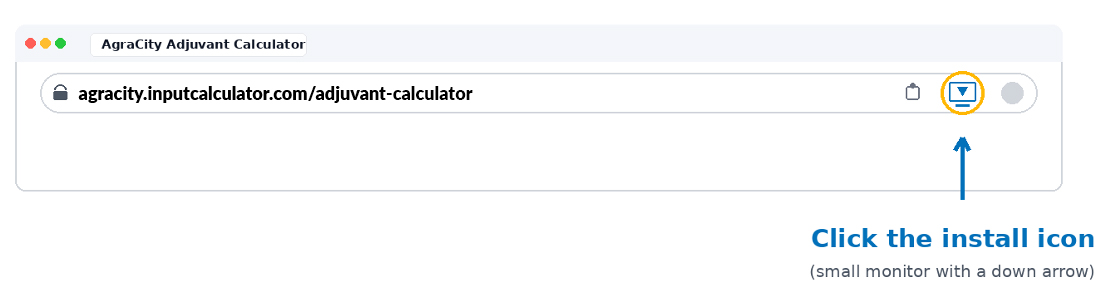
- Look at the right side of the address bar for a small install icon (a tiny monitor with a down arrow).
- Click the icon, then click Install in the dialog that appears.
Option B — Use the in-page Install button
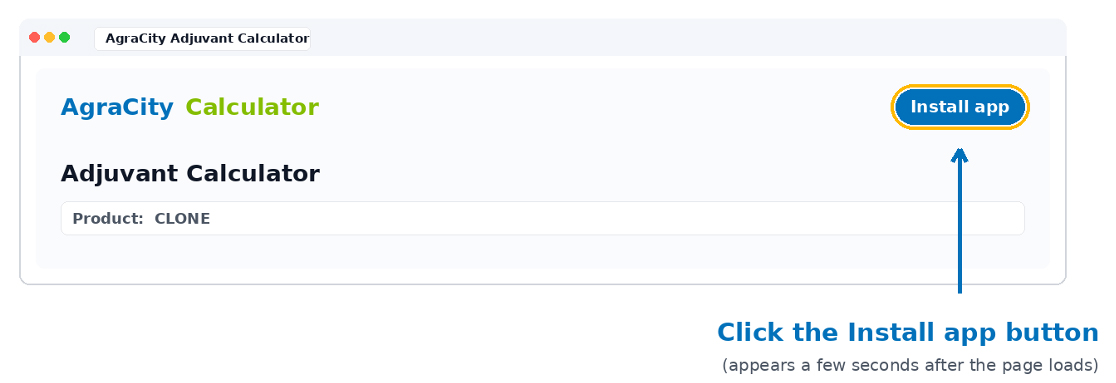
If you don't see the install icon in the address bar, the calculator also has its own button that appears a few seconds after the page loads.
- On the calculator page, look for the Install app button near the top.
- Click it and confirm the install in the dialog.
IF THE BUTTON DOESN'T APPEAR
Wait 10 seconds and click around on the page (change a value, scroll). Chrome's install prompt needs a small amount of user interaction before it offers itself. If it still doesn't show, use Chrome's three-dot menu (top right) → Cast, Save and Share → Install AgraCity Adjuvant Calculator.
Installing in Microsoft Edge
Microsoft Edge is built on the same engine as Chrome, so the in-pageInstall app button and the address-bar install icon work the same way (see Chrome instructions above). Edge is sometimes slower to show those, in which case install through the menu instead.
Use the Edge menu
- Open Edge and go tohttps://agracity.inputcalculator.com/adjuvant-calculator
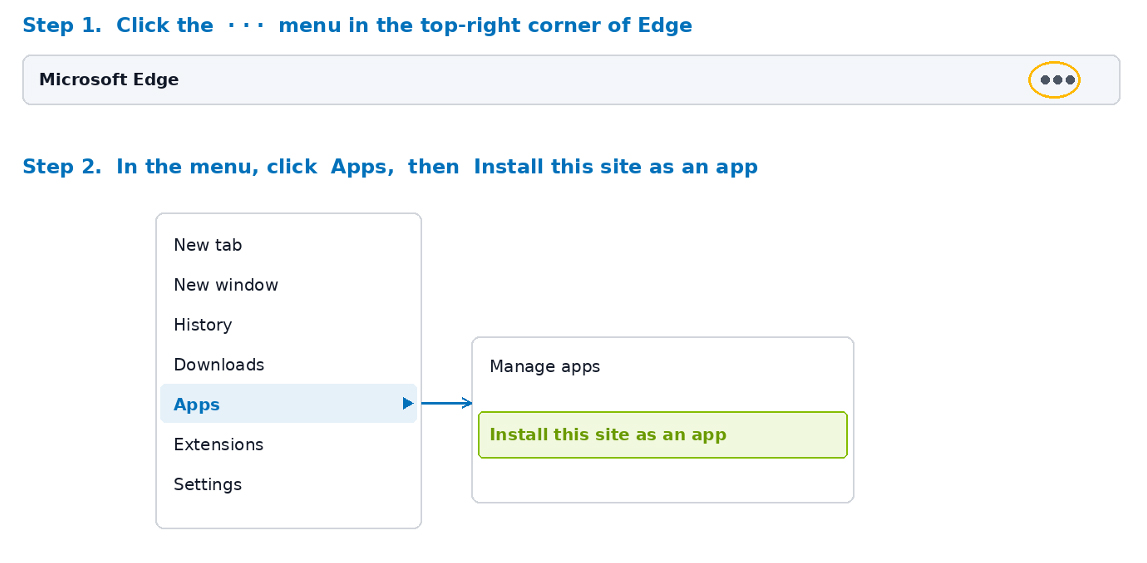
- Click the· · ·(three-dots) menu in the top-right corner of the Edge window.
- Click Apps in the menu, then clickInstall this site as an app in the submenu.
- Confirm the name (AgraCity Adjuvant Calculator) and click Install.
IF THE MENU ITEMS AREN'T THERE
On older versions of Edge the path isApps → Install this site as an app. On newer versions you may also seeApps → Manage apps with an Install option inside. Either way, look for the word Install.
Installing in Safari on a Mac
Safari handles installation differently from Chrome and Edge — there is no install button inside the page. Instead you use Safari's File menu. This requires Safari 17 or later (macOS Sonoma or newer). To check, clickSafari → About Safari in the menu bar.
Add the calculator to your Dock
- Open Safari and go to https://agracity.inputcalculator.com/adjuvant-calculator
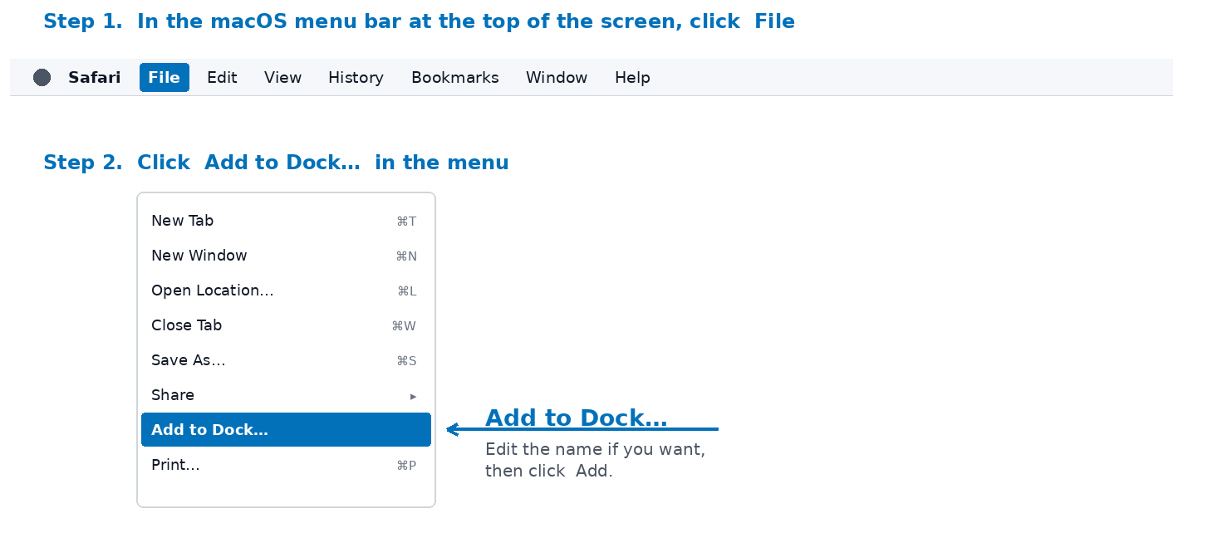
- In the macOS menu bar at the top of the screen, clickFile.
- ClickAdd to Dock…in the menu that drops down.
- Edit the name if you want, then click Add.
DON'T SEE ADD TO DOCK? You're likely on an older version of Safari. Open the Apple menu → System Settings → General → Software Update and update macOS. Once you're on macOS Sonoma or newer with Safari 17+, the option will appear.
Installing on iPhone or iPad
On iPhone and iPad, you must use Safari. Other browsers (like Chrome on iOS) cannot install Progressive Web Apps because of Apple's restrictions.
Add to Home Screen
1.Open Safari on your iPhone or iPad and go to https://agracity.inputcalculator.com/adjuvant-calculator
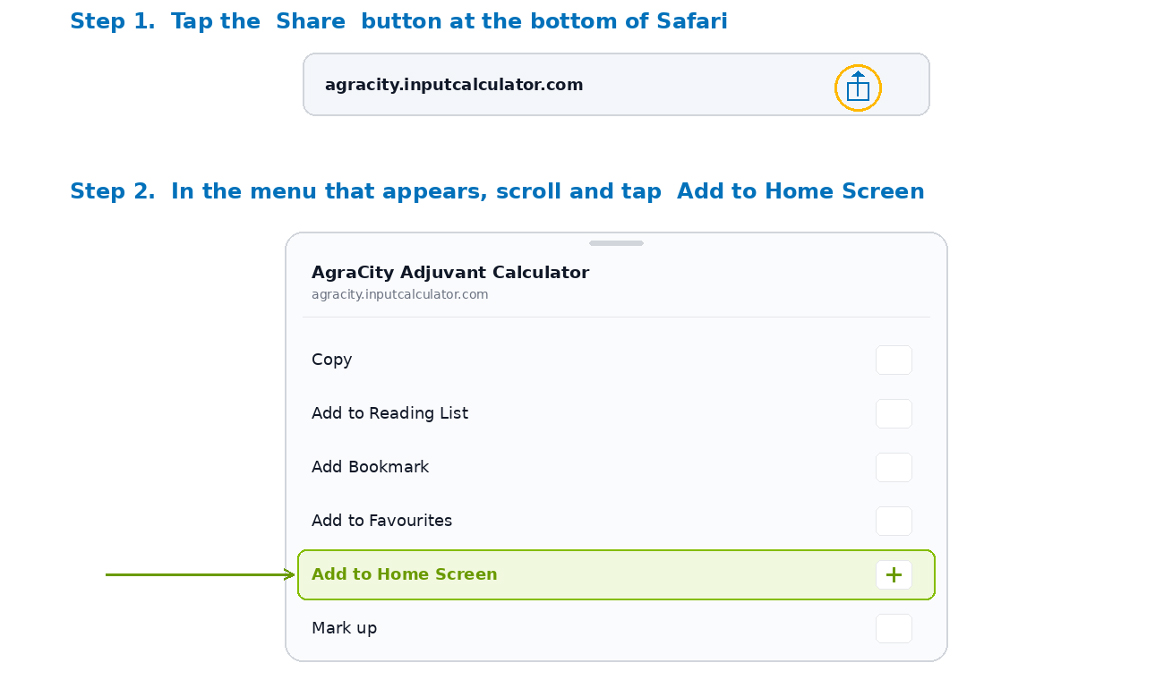
2.Tap the Share button (a square with an up-arrow) at the bottom of Safari.
3.In the share menu that appears, scroll down and tapAdd to Home Screen.
4.Edit the name if you want, then tapAddin the top right.
WHERE THE ICON GOES After tapping Add, the AgraCity icon appears on your home screen alongside your other apps. Tap it to launch the calculator full-screen, just like a normal app.
After the calculator is installed
What you'll see:
•An AgraCity icon on your Dock (Mac), Start menu (Windows), or Home Screen (iPhone / iPad / Android).
•When you tap or click the icon, the calculator opens in its own window with no browser bar around it.
•All product data, formulas, and styling are stored locally on the device. The app works exactly the same with no internet connection.
Testing offline use:
- Open the installed AgraCity app once while you have internet — this caches it.
- Turn off Wi-Fi and cell data on the device.
- Close the app and reopen it. It should launch and work normally.
UPDATES When AgraCity adds new products or changes a rate, the installed app refreshes itself automatically the next time you open it with internet. You don't need to reinstall.